GitLab Duo in merge requests
GitLab Duo is designed to provide contextually relevant information during the lifecycle of a merge request.
Generate a description by summarizing code changes
- Tier: Premium, Ultimate
- Add-on: GitLab Duo Enterprise
- Offering: GitLab.com, GitLab Self-Managed
- Status: Beta
When you create or edit a merge request, use GitLab Duo Merge Request Summary to create a merge request description.
-
In the Description field, put your cursor where you want to insert the description.
-
On the toolbar above the text area, select Summarize code changes ( ).
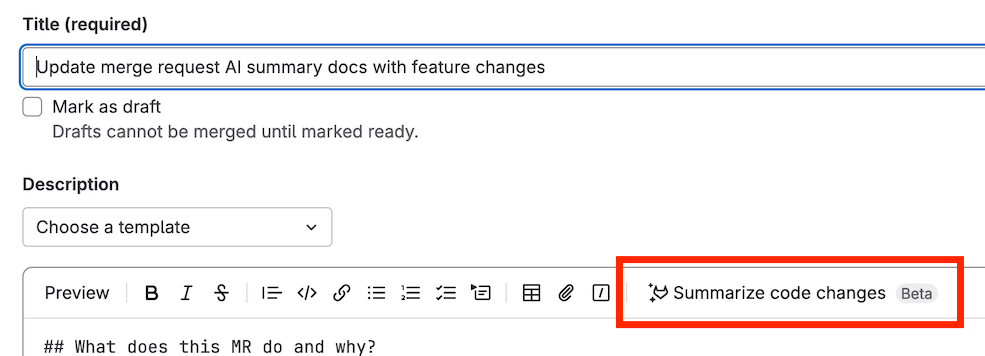
The description is inserted where your cursor was.
Provide feedback on this feature in issue 443236.
Data usage: The diff of changes between the source branch’s head and the target branch is sent to the large language model.
Use GitLab Duo to review your code
GitLab Duo can review your merge request for potential errors and provide feedback on alignment to standards.
When you request a review from GitLab Duo, it automatically runs one of two code review features based on your add-on. Users with the Owner role for the group can configure which feature runs for all users.
| Detail | Code Review Flow | GitLab Duo Code Review |
|---|---|---|
| Reviewer | @GitLabDuo |
@GitLabDuo |
| Type | Agentic | Non-agentic |
| Required add-on | None. Uses GitLab Credits. | GitLab Duo Enterprise |
| Context awareness | Enhanced understanding of repository structure and cross-file dependencies | Focused on the merge request and the file diffs within it |
| Analysis | Multi-step agentic reasoning | Single-pass |
| Session creation | No | |
| Automatic reviews | ||
| Custom instructions | ||
| Custom comments |
Determine which review feature runs
By default, the code review feature that GitLab runs depends on the user that initiates the review.
| Review trigger | Initiating user |
|---|---|
| Review requested manually | The user who requests the review. |
| Merge request created (not a draft) | The merge request author. |
| Draft merge request marked as ready | The merge request author. |
If the initiating user has a GitLab Duo Enterprise seat, GitLab Duo Code Review runs. If not, Code Review Flow runs. Both features can run in the same project.
Users with the Owner role for the group can configure all reviews to use Code Review Flow, regardless of seat type. When Code Review Flow runs, credit usage is attributed to the initiating user.
To determine which feature runs a review, check the merge request’s activity feed. Code Review Flow starts a review session when it runs. If no review session appears, GitLab Duo Code Review runs the review.

After the review completes, you can also look for a Code Review Flow session in sessions for your project.
Turn on Code Review Flow for GitLab Duo Enterprise seats
The availability of this feature is controlled by a feature flag. For more information, see the history.
To prevent GitLab Duo Enterprise seat holders from using a feature that consumes GitLab Credits, all code reviews they initiate use GitLab Duo Code Review by default. This behavior occurs even if a user with the Owner role turns on Code Review Flow for the group.
You can change this default and configure all code reviews to use Code Review Flow instead, regardless of the user’s seat.
To override the default code review feature for GitLab Duo Enterprise seats:
Prerequisites:
- The Owner role for the top-level group.
- Code Review Flow turned on and configured correctly for your top-level group.
- In the top bar, select Search or go to and find your top-level group.
- Select Settings > GitLab Duo.
- Select Change configuration.
- Under Flow execution > Allow foundational flows, clear the Code Review Flow checkbox and then select it again.
- In the confirmation dialog, select Enable Code Review Flow.
Prerequisites:
- The Maintainer or Owner role for the group.
- Code Review Flow turned on and configured correctly for the instance.
- In the top bar, select Search or go to and find your group or subgroup.
- Select Settings > General.
- Expand GitLab Duo features.
- Under Flow execution, clear the Code Review Flow checkbox, and select Save changes.
- Expand GitLab Duo features again and, under Flow execution, select the Code Review Flow checkbox.
- In the confirmation dialog, select Enable Code Review Flow.
- Select Save changes.
Code Review Flow now runs for all code reviews in the group and consumes GitLab Credits. To switch all reviews back to GitLab Duo Code Review, turn off Code Review Flow.
Resolve a discussion with GitLab Duo
- Tier: Premium, Ultimate
- Offering: GitLab.com, GitLab Self-Managed, GitLab Dedicated
- Status: Beta
Use GitLab Duo to resolve review discussions on merge requests.
When you ask GitLab Duo to resolve a discussion, it reads the review comment and the surrounding code, makes the requested change on the source branch, then commits and pushes the change. GitLab Duo then replies to the discussion with a summary of the change and resolves the thread.
This feature uses the Developer Flow on the GitLab Duo Agent Platform.
Prerequisites:
- The Developer, Maintainer, or Owner role for the project.
- The prerequisites for the GitLab Duo Agent Platform.
- Allow foundational flows and Developer turned on for the top-level group.
- Push rules configured to allow a service account.
- Your own runners configured, or GitLab hosted runners turned on for your project.
To resolve a discussion with GitLab Duo:
- In the merge request, go to an unresolved discussion.
- Next to Resolve thread, select More resolve options ( ).
- Select Resolve with GitLab Duo.
GitLab Duo starts a session you can track in the sessions for your project.
Summarize a code review
- Tier: Premium, Ultimate
- Add-on: GitLab Duo Enterprise
- Offering: GitLab.com, GitLab Self-Managed, GitLab Dedicated
- Status: Experiment
When you’ve completed your review of a merge request and are ready to submit your review, use GitLab Duo Code Review Summary to generate a summary of your comments.
- In the top bar, select Search or go to and find your project.
- In the left sidebar, select Code > Merge requests and find the merge request you want to review.
- When you are ready to submit your review, select Finish review.
- Select Add Summary.
The summary is displayed in the comment box. You can edit and refine the summary before you submit your review.
Provide feedback on this experimental feature in issue 408991.
Data usage: When you use this feature, the following data is sent to the large language model:
- Draft comment’s text
Generate a merge commit message
- Tier: Premium, Ultimate
- Add-on: GitLab Duo Enterprise, GitLab Duo with Amazon Q
- Offering: GitLab.com, GitLab Self-Managed, GitLab Dedicated
When preparing to merge your merge request, edit the proposed merge commit message by using GitLab Duo Merge Commit Message Generation.
- In the top bar, select Search or go to and find your project.
- In the left sidebar, select Code > Merge requests and find your merge request.
- Select the Edit commit message checkbox on the merge widget.
- Select Generate commit message.
- Review the commit message provided and choose Insert to add it to the commit.
Data usage: When you use this feature, the following data is sent to the large language model:
- Contents of the file
- The filename
Related topics
Troubleshooting
When working with GitLab Duo in Merge Requests, you might encounter the following issues.
Response not received
If you ask GitLab Duo for a review by mentioning or replying to @GitLabDuo,
and do not receive a response, this might be because you do not have the
appropriate GitLab Duo add-on.
To check your GitLab Duo add-on, ask your group Owner to check the group’s GitLab Duo seat assignments.
To change your GitLab Duo add-on, contact your administrator.
Unable to assign GitLab Duo to review
If you cannot assign GitLab Duo as a reviewer, it might be because you do not have the appropriate GitLab Duo add-on.
To check your GitLab Duo add-on, ask your group Owner to check the group’s GitLab Duo seat assignments.
To change your GitLab Duo add-on, contact your administrator.
Error: GitLab Duo Code Review was not automatically added...
If you try to create a merge request with automatic reviews from GitLab Duo turned on, you might get the following error message:
GitLab Duo Code Review was not automatically added because your account requires
GitLab Duo Enterprise. Contact your administrator to upgrade your account.
Contact your administrator to ask them to purchase a GitLab Duo Enterprise seat and assign it to you.