Tutorial: Connect Claude Desktop to the GitLab MCP server
With the GitLab Model Context Protocol (MCP) server, you can connect external AI tools and applications to your GitLab instance. In this tutorial, you will configure the GitLab MCP server to connect to Claude Desktop. After you have successfully integrated Claude Desktop with the MCP server, you will instruct Claude to create an issue in your GitLab instance.
Before you begin
- Turn on GitLab Duo and beta and experimental features.
- Install Claude Desktop for your operating system.
- Install Node.js version 20 or later.
Have Node.js available globally in the
PATHenvironment variable (which -a node). - Have at least one active project where you can create an issue.
Connect Claude Desktop to the GitLab MCP server
-
Open Claude Desktop.
-
Edit the configuration file. You can do either of the following:
- In Claude Desktop, select Settings > Developer > Edit Config.
- In your file system, go to
claude_desktop_config.jsonand open the file. For example:- On macOS:
~/Library/Application Support/Claude/claude_desktop_config.json. - On Windows:
%APPDATA%\Claude\claude_desktop_config.json.
- On macOS:
-
Add the following entry for the GitLab MCP server, editing as needed:
- For the
"command":parameter, ifnpxis installed locally instead of globally, provide the full path tonpx. - Replace
<gitlab.example.com>with:- On GitLab Self-Managed, your GitLab instance URL.
- On GitLab.com,
GitLab.com.
{ "mcpServers": { "GitLab": { "command": "npx", "args": [ "-y", "mcp-remote", "https://<gitlab.example.com>/api/v4/mcp" ] } } } - For the
-
Save the configuration and restart Claude Desktop.
-
On first connect, Claude Desktop opens a browser window for OAuth authentication. Review and approve the request.
-
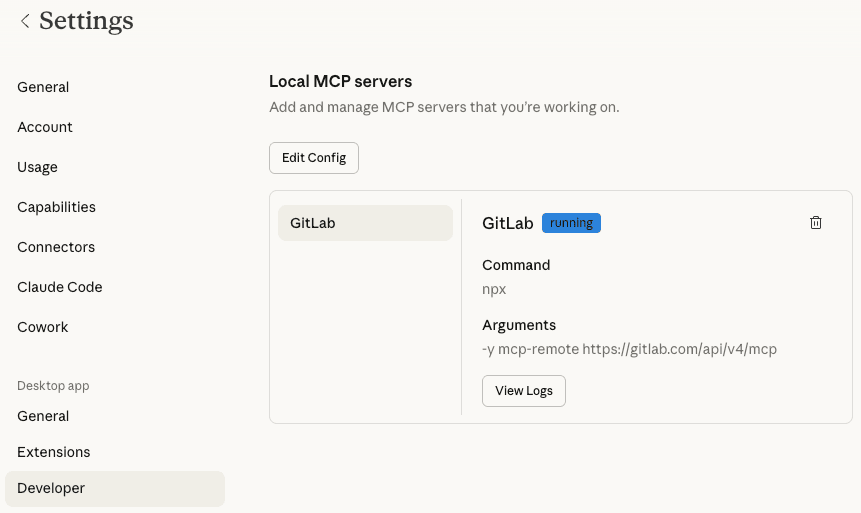
Go to Settings > Developer and verify the new GitLab MCP configuration.
Customize tool permissions
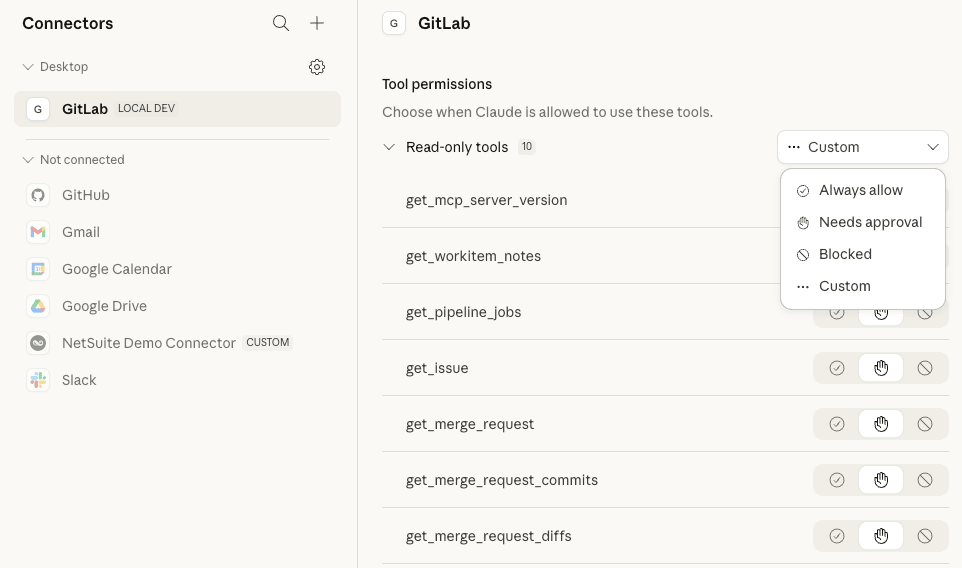
After you’ve successfully connected the MCP server, you can customize what tools Claude can use when interacting with your GitLab instance. For example, you can configure Claude to request approval before executing certain actions, like creating an issue or managing a CI/CD pipeline.
To view tool permissions in Claude:
- In the left sidebar, select Customize > Connectors.
- Under Desktop, select GitLab.
- Set
create_issueto either Needs approval or Always allow.
Test the connection
Now that you’ve successfully connected Claude Desktop to the MCP server, test the connection with a prompt:
-
In the chat text box, type:
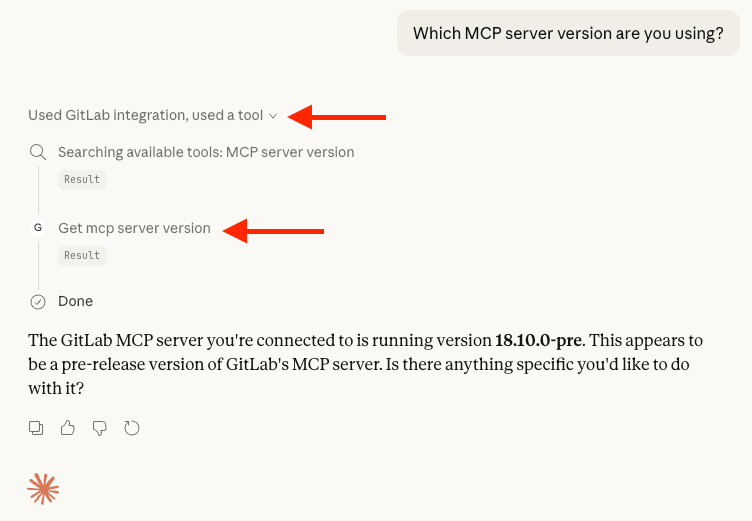
Which MCP server version are you using? -
Press Enter or select Send.
Claude should respond with the server version along with details about the integration and tools it used to answer the prompt.
Create an issue in a project
Now, ask Claude to find a specific project where you can create a test issue.
-
In the chat text box, type:
Can you find my project <project_name>?Replace
<project_name>with your project. -
Press Enter or select Send.
-
After Claude finds your project, ask Claude to create an issue in the project. In the chat text box, type:
Can you create an issue in the project called "Test issue from MCP server", and give it the following description: "This is a test issue created by Claude Desktop and the GitLab MCP server." -
Press Enter or select Send.
-
If you set
create_issueto Needs approval, Claude will ask for permission to create an issue. Select Always allow or, from the dropdown list, select Allow once.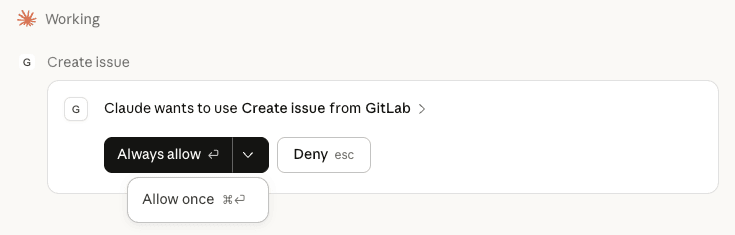
After Claude creates the issue, it will provide issue details, including a URL to access the issue in your browser.