GitLab Pages administration
- Tier: Free, Premium, Ultimate
- Offering: GitLab Self-Managed
GitLab Pages provides static site hosting for GitLab projects and groups. Server administrators must configure Pages before users can access this feature. With GitLab Pages, administrators can:
- Host static websites securely with custom domains and SSL/TLS certificates.
- Enable authentication to control access to Pages sites through GitLab permissions.
- Scale deployments using object storage or network storage in multi-node environments.
- Monitor and manage traffic with rate limiting and custom headers.
- Support IPv4 and IPv6 addresses for all Pages sites.
The GitLab Pages daemon runs as a separate process and can be configured either on the same server as GitLab or on its own dedicated infrastructure. For user documentation, see GitLab Pages.
This guide is for Linux package installations. For self-compiled installations, see GitLab Pages administration for self-compiled installations.
GitLab Pages daemon
GitLab Pages uses the GitLab Pages daemon, a basic HTTP server written in Go that can listen on an external IP address and provide support for custom domains and custom certificates. It supports dynamic certificates through Server Name Indication (SNI) and exposes pages using HTTP2 by default.
For more information, see the README.
When used with custom domains, the Pages daemon must listen on
ports 80 or 443. This is not required for wildcard domains.
You can run the Pages daemon:
- On the same server as GitLab, listening on a secondary IP.
- On a separate server. The Pages path must also be present on the server where the Pages daemon is installed, so you must share it over the network.
- On the same server as GitLab, listening on the same IP but on different ports. In this case, you must proxy the traffic with a load balancer. For HTTPS, use TCP load balancing. If you use TLS termination (HTTPS load balancing), pages cannot be served with user-provided certificates. For HTTP, either HTTP or TCP load balancing is acceptable.
The following sections assume the first option. If you are not supporting custom domains, a secondary IP is not needed.
Prerequisites
This section describes the prerequisites for configuring GitLab Pages.
If your GitLab instance and the Pages daemon are deployed in a private network or behind a firewall, your GitLab Pages websites are only accessible to devices and users with access to the private network.
Wildcard domains
Each site gets its own subdomain (for example, <namespace>.example.io/<project_slug>).
This subdomain requires a wildcard DNS record (*.example.io) and is the recommended setup for most instances.
Before configuring Pages for wildcard domains, you must:
-
Have a domain for Pages that is not a subdomain of your GitLab instance domain.
GitLab domain Pages domain Does it work? example.comexample.ioYes example.compages.example.comNo 1 gitlab.example.compages.example.comYes Footnotes:
- If the Pages domain is a subdomain of your GitLab instance domain, all deployed Pages sites can access GitLab session cookies.
-
Configure a wildcard DNS record.
-
Optional. Have a wildcard certificate for that domain if you decide to serve Pages under HTTPS.
-
Optional but recommended. Enable instance runners so that your users do not have to bring their own.
-
For custom domains, have a secondary IP.
Single-domain sites
All sites share one domain, with the namespace and project slug as path segments
(for example, example.io/<namespace>/<project_slug>).
This domain requires only a single DNS A record.
Before configuring Pages for single-domain sites, you must:
-
Have a domain for Pages that is not a subdomain of your GitLab instance domain.
GitLab domain Pages domain Supported example.comexample.ioYes example.compages.example.comNo 1 gitlab.example.compages.example.comYes Footnotes:
- If the Pages domain is a subdomain of your GitLab instance domain, all deployed Pages sites can access GitLab session cookies.
-
Configure a DNS record.
-
Optional. If you decide to serve Pages under HTTPS, have a TLS certificate for that domain.
-
Optional but recommended. Enable instance runners so that your users do not have to bring their own.
-
For custom domains, have a secondary IP.
Add the domain to the Public Suffix List
The Public Suffix List is used by browsers to
decide how to treat subdomains. If your GitLab instance allows members of the
public to create GitLab Pages sites, it also allows those users to create
subdomains on the pages domain (example.io). Adding the domain to the Public
Suffix List prevents browsers from accepting
supercookies,
among other things.
To submit your GitLab Pages subdomain, see submit amendments to the Public Suffix List.
For example, if your domain is example.io, you should
request that example.io is added to the Public Suffix List. GitLab.com
added gitlab.io in 2016.
DNS configuration
GitLab Pages run on their own virtual host. In your DNS server or provider, add a
wildcard DNS A record pointing to the host
that GitLab runs on. For example:
*.example.io. 1800 IN A    192.0.2.1
*.example.io. 1800 IN AAAA 2001:db8::1
Where example.io is the domain GitLab Pages is served from,
192.0.2.1 is the IPv4 address of your GitLab instance, and 2001:db8::1 is the
IPv6 address. If you do not have IPv6, you can omit the AAAA record.
DNS configuration for single-domain sites
To configure GitLab Pages DNS for single-domain sites without wildcard DNS:
-
Enable the GitLab Pages flag for this feature by adding
gitlab_pages['namespace_in_path'] = trueto/etc/gitlab/gitlab.rb. -
In your DNS provider, add entries for
example.io. Replaceexample.iowith your domain name, and192.0.0.0with the IPv4 address of your instance:example.io 1800 IN A 192.0.0.0 -
Optional. If your GitLab instance has an IPv6 address, add entries for it. Replace
example.iowith your domain name, and2001:db8::1with the IPv6 address of your instance:example.io 1800 IN AAAA 2001:db8::1example.iois the domain GitLab Pages is served from.
DNS configuration for custom domains
If you need custom domain support, all subdomains of the Pages root domain must point to the
secondary IP dedicated to the Pages daemon. Without this configuration, users cannot use CNAME
records to point their custom domains to their GitLab Pages.
For example:
example.com   1800 IN A    192.0.2.1
*.example.io. 1800 IN A    192.0.2.2
This example contains:
example.com: The GitLab domain.example.io: The domain GitLab Pages is served from.192.0.2.1: The primary IP of your GitLab instance.192.0.2.2: The secondary IP dedicated to GitLab Pages. It must differ from the primary IP.
Do not use the GitLab domain to serve user pages. For more information, see the security section.
Configuration
You can set up GitLab Pages in several ways. The following examples are listed from the simplest setup to the most advanced.
Wildcard domains
This configuration is the minimum setup to use GitLab Pages and serves as the foundation for all other setups. In this configuration:
- NGINX proxies all requests to the GitLab Pages daemon.
- The GitLab Pages daemon does not listen directly to the public internet.
Prerequisites:
- You have configured wildcard DNS.
To configure GitLab Pages to use wildcard domains:
-
Set the external URL for GitLab Pages in
/etc/gitlab/gitlab.rb:external_url "http://example.com" # external_url here is only for reference pages_external_url 'http://example.io' # Important: not a subdomain of external_url, so cannot be http://pages.example.com -
Save the file and reconfigure GitLab for the changes to take effect.
The resulting URL scheme is http://<namespace>.example.io/<project_slug>.
For an overview, see the enable GitLab Pages for GitLab CE and EE video.
Single-domain sites
This configuration is the minimum setup to use single-domain sites and serves as the foundation for all other single-domain setups. In this configuration:
- NGINX proxies all requests to the GitLab Pages daemon.
- The GitLab Pages daemon does not listen directly to the public internet.
Prerequisites:
- You have configured DNS for single-domain sites.
To configure GitLab Pages to use single-domain sites:
-
In
/etc/gitlab/gitlab.rb, set the external URL for GitLab Pages, and enable the feature:external_url "http://example.com" # Swap out this URL for your own pages_external_url 'http://example.io' # Important: not a subdomain of external_url, so cannot be http://pages.example.com # Set this flag to enable this feature gitlab_pages['namespace_in_path'] = true -
Save the file and reconfigure GitLab for the changes to take effect.
The resulting URL scheme is http://example.io/<namespace>/<project_slug>.
GitLab Pages supports only one URL scheme at a time: wildcard domains or single-domain sites.
If you enable namespace_in_path, existing GitLab Pages websites are accessible only as
single-domain sites.
Wildcard domains with TLS support
NGINX proxies all requests to the daemon. The Pages daemon does not listen to the public internet.
Only one wildcard can be assigned to an instance.
Prerequisites:
- You have configured wildcard DNS.
- You have a TLS certificate. It can be a wildcard certificate or any other type meeting the requirements.
To configure wildcard domains with TLS support:
-
Place the wildcard TLS certificate for
*.example.ioand the key inside/etc/gitlab/ssl. -
In
/etc/gitlab/gitlab.rb, specify the following configuration:external_url "https://example.com" # external_url here is only for reference pages_external_url 'https://example.io' # Important: not a subdomain of external_url, so cannot be https://pages.example.com pages_nginx['redirect_http_to_https'] = true -
If your certificate and key are not named
example.io.crtandexample.io.key, add the full paths:pages_nginx['ssl_certificate'] = "/etc/gitlab/ssl/pages-nginx.crt" pages_nginx['ssl_certificate_key'] = "/etc/gitlab/ssl/pages-nginx.key" -
Save the file and reconfigure GitLab for the changes to take effect.
-
If you’re using access control, update the redirect URI in the GitLab Pages system OAuth application to use the HTTPS protocol.
The resulting URL scheme is https://<namespace>.example.io/<project_slug>.
GitLab Pages does not update the OAuth application if changes are made to the redirect URI.
Before you reconfigure, remove the gitlab_pages section from
/etc/gitlab/gitlab-secrets.json, then run gitlab-ctl reconfigure. For more information, see
GitLab Pages does not regenerate OAuth.
Single-domain sites with TLS support
In this configuration, NGINX proxies all requests to the daemon. The GitLab Pages daemon does not listen to the public internet.
Prerequisites:
- You have configured DNS for single-domain sites.
- You have a TLS certificate that covers your domain (like
example.io).
To configure single-domain sites with TLS support:
-
Add your TLS certificate and key to
/etc/gitlab/ssl. -
In
/etc/gitlab/gitlab.rb, set the external URL for GitLab Pages and enable the feature:external_url "https://example.com" # Swap out this URL for your own pages_external_url 'https://example.io' # Important: not a subdomain of external_url, so cannot be https://pages.example.com pages_nginx['redirect_http_to_https'] = true # Set this flag to enable this feature gitlab_pages['namespace_in_path'] = true -
If your TLS certificate or key files have different names than
example.io.crtandexample.io.key, add the full paths:pages_nginx['ssl_certificate'] = "/etc/gitlab/ssl/pages-nginx.crt" pages_nginx['ssl_certificate_key'] = "/etc/gitlab/ssl/pages-nginx.key" -
If you’re using access control, update the redirect URI in the GitLab Pages system OAuth application to use the HTTPS protocol.
GitLab Pages does not update the OAuth application, and the default
auth_redirect_uriis updated tohttps://example.io/projects/auth. Before you reconfigure, remove thegitlab_pagessection from/etc/gitlab/gitlab-secrets.json, then rungitlab-ctl reconfigure. For more information, see GitLab Pages does not regenerate OAuth. -
Save the file and reconfigure GitLab for the changes to take effect.
The resulting URL scheme is https://example.io/<namespace>/<project_slug>.
GitLab Pages supports only one URL scheme at a time:
wildcard domains or single-domain sites.
If you enable namespace_in_path, existing GitLab Pages websites
are accessible only as single-domain sites.
Wildcard domains with TLS-terminating load balancer
Use this setup when installing a GitLab POC on Amazon Web Services. This setup includes a TLS-terminating classic load balancer that listens for HTTPS connections, manages TLS certificates, and forwards HTTP traffic to the instance.
Prerequisites:
- Configured wildcard DNS.
- A TLS-terminating load balancer.
To configure wildcard domains with a TLS-terminating load balancer:
-
In
/etc/gitlab/gitlab.rb, specify the following configuration:external_url "https://example.com" # external_url here is only for reference pages_external_url 'https://example.io' # Important: not a subdomain of external_url, so cannot be https://pages.example.com pages_nginx['enable'] = true pages_nginx['listen_port'] = 80 pages_nginx['listen_https'] = false pages_nginx['redirect_http_to_https'] = true -
Save the file and reconfigure GitLab for the changes to take effect.
The resulting URL scheme is https://<namespace>.example.io/<project_slug>.
Global settings
The following table explains all configuration settings known to Pages in a Linux package installation.
These options can be adjusted in /etc/gitlab/gitlab.rb,
and take effect after you reconfigure GitLab.
Most of these settings do not have to be configured manually unless you need more granular control over how the Pages daemon runs and serves content in your environment.
| Setting | Default | Description |
|---|---|---|
pages_external_url 1 |
Not applicable | The URL where GitLab Pages is accessible, including protocol (HTTP / HTTPS). If https:// is used, additional configuration is required. For more information, see wildcard domains with TLS support and custom domains with TLS support. |
gitlab_pages[] |
Not applicable | |
access_control |
Not applicable | Whether to enable access control. |
api_secret_key |
Auto-generated | Full path to file with secret key used to authenticate with the GitLab API. |
artifacts_server |
Not applicable | Enable viewing job artifacts in GitLab Pages. |
artifacts_server_timeout |
Not applicable | Timeout (in seconds) for a proxied request to the artifacts server. |
artifacts_server_url |
GitLab external URL + /api/v4 |
API URL to proxy artifact requests to, for example https://gitlab.com/api/v4. When running a separate Pages server, this URL must point to the main GitLab server’s API. |
auth_redirect_uri |
Project’s subdomain of pages_external_url + /auth |
Callback URL for authenticating with GitLab. URL should be subdomain of pages_external_url + /auth, for example https://projects.example.io/auth. When namespace_in_path is enabled, defaults to pages_external_url + /projects/auth, for example https://example.io/projects/auth. |
auth_secret |
Auto-pulled from GitLab | Secret key for signing authentication requests. Leave blank to pull automatically from GitLab during OAuth registration. |
client_cert |
Not applicable | Client certificate used for mutual TLS with the GitLab API. |
client_key |
Not applicable | Client key used for mutual TLS with the GitLab API. |
client_ca_certs |
Not applicable | Root CA certificates used to sign client certificate used for mutual TLS with the GitLab API. |
dir |
Not applicable | Working directory for configuration and secrets files. |
enable |
Not applicable | Enable or disable GitLab Pages on the current system. |
external_http |
Not applicable | Configure Pages to bind to one or more secondary IP addresses, serving HTTP requests. Multiple addresses can be given as an array, along with exact ports, for example ['1.2.3.4', '1.2.3.5:8063']. Sets value for listen_http. If running GitLab Pages behind a reverse proxy with TLS termination, specify listen_proxy instead of external_http. |
external_https |
Not applicable | Configure Pages to bind to one or more secondary IP addresses, serving HTTPS requests. Multiple addresses can be given as an array, along with exact ports, for example ['1.2.3.4', '1.2.3.5:8063']. Sets value for listen_https. |
custom_domain_mode |
Not applicable | Configure Pages to enable custom domain: http or https. When running a separate Pages server, configure this setting on the GitLab server as well. Introduced in GitLab 18.1. |
server_shutdown_timeout |
30s |
GitLab Pages server shutdown timeout in seconds. |
gitlab_client_http_timeout |
60s |
GitLab API HTTP client connection timeout in seconds. |
gitlab_client_jwt_expiry |
30s |
JWT Token expiry time in seconds. |
gitlab_cache_expiry |
600s |
The maximum time a domain’s configuration is stored in the cache. |
gitlab_cache_refresh |
60s |
The interval at which a domain’s configuration is set to be due to refresh. |
gitlab_cache_cleanup |
60s |
The interval at which expired items are removed from the cache. |
gitlab_retrieval_timeout |
30s |
The maximum time to wait for a response from the GitLab API per request. |
gitlab_retrieval_interval |
1s |
The interval to wait before retrying to resolve a domain’s configuration by using the GitLab API. |
gitlab_retrieval_retries |
3 |
The maximum number of times to retry to resolve a domain’s configuration by using the GitLab API. |
gitlab_id |
Auto-filled | The OAuth application public ID. Leave blank to automatically fill when Pages authenticates with GitLab. |
gitlab_secret |
Auto-filled | The OAuth application secret. Leave blank to automatically fill when Pages authenticates with GitLab. |
auth_scope |
api |
The OAuth application scope to use for authentication. Must match GitLab Pages OAuth application settings. Leave blank to use api scope by default. |
auth_timeout |
5s |
GitLab application client timeout for authentication in seconds. A value of 0 means no timeout. |
auth_cookie_session_timeout |
10m |
Authentication cookie session timeout in seconds. A value of 0 means the cookie is deleted after the browser session ends. |
gitlab_server |
GitLab external_url |
Server to use for authentication when access control is enabled. |
headers |
Not applicable | Specify any additional HTTP headers that should be sent to the client with each response. Multiple headers can be given as an array, header and value as one string. For example ['my-header: myvalue', 'my-other-header: my-other-value']. |
enable_disk |
Not applicable | Allows the GitLab Pages daemon to serve content from disk. Disable if shared disk storage is not available. |
insecure_ciphers |
Not applicable | Use default list of cipher suites, which may contain insecure ones like 3DES and RC4. |
internal_gitlab_server |
GitLab external_url |
Internal GitLab server address used exclusively for API requests. Use if you want to send that traffic over an internal load balancer. |
listen_proxy |
Not applicable | The addresses to listen on for reverse-proxy requests. Pages binds to these addresses’ network sockets and receives incoming requests from them. Sets the value of proxy_pass in $nginx-dir/conf/gitlab-pages.conf. |
log_directory |
Not applicable | Absolute path to a log directory. |
log_format |
Not applicable | The log output format: text or json. |
log_verbose |
Not applicable | Verbose logging, true/false. |
namespace_in_path |
false |
Enable or disable namespace in the URL path to support single-domain sites DNS setup. |
propagate_correlation_id |
false |
Set to true to re-use existing Correlation ID from the incoming request header X-Request-ID if present. If a reverse proxy sets this header, the value is propagated in the request chain. |
max_connections |
Not applicable | Limit on the number of concurrent connections to the HTTP, HTTPS or proxy listeners. |
max_uri_length |
2048 |
The maximum length of URIs accepted by GitLab Pages. Set to 0 for unlimited length. |
metrics_address |
Not applicable | The address to listen on for metrics requests. |
redirect_http |
Not applicable | Redirect pages from HTTP to HTTPS, true/false. |
redirects_max_config_size |
65536 |
The maximum size of the _redirects file, in bytes. |
redirects_max_path_segments |
25 |
The maximum number of path segments allowed in _redirects rules URLs. |
redirects_max_rule_count |
1000 |
The maximum number of rules allowed in _redirects. |
sentry_dsn |
Not applicable | The address for sending Sentry crash reporting to. |
sentry_enabled |
Not applicable | Enable reporting and logging with Sentry, true/false. |
sentry_environment |
Not applicable | The environment for Sentry crash reporting. |
status_uri |
Not applicable | The URL path for a status page, for example, /@status. Configure to enable health check endpoint on GitLab Pages. |
tls_max_version |
Not applicable | Specifies the maximum TLS version (“tls1.2” or “tls1.3”). |
tls_min_version |
Not applicable | Specifies the minimum TLS version (“tls1.2” or “tls1.3”). |
use_http2 |
Not applicable | Enable HTTP2 support. |
gitlab_pages['env'][] |
Not applicable | |
http_proxy |
Not applicable | Configure GitLab Pages to use an HTTP proxy to mediate traffic between Pages and GitLab. Sets an environment variable http_proxy when starting the Pages daemon. |
gitlab_rails[] |
Not applicable | |
pages_domain_verification_cron_worker |
Not applicable | Schedule for verifying custom GitLab Pages domains. |
pages_domain_ssl_renewal_cron_worker |
Not applicable | Schedule for obtaining and renewing SSL certificates through Let’s Encrypt for GitLab Pages domains. |
pages_domain_removal_cron_worker |
Not applicable | Schedule for removing unverified custom GitLab Pages domains. |
pages_path |
GITLAB-RAILS/shared/pages |
The directory on disk where pages are stored. |
pages_nginx[] |
Not applicable | |
enable |
Not applicable | Include a virtual host server{} block for Pages inside NGINX. Needed for NGINX to proxy traffic back to the Pages daemon. Set to false if the Pages daemon should directly receive all requests, for example, when using custom domains. |
FF_CONFIGURABLE_ROOT_DIR |
Not applicable | Feature flag to customize the default folder (enabled by default). |
FF_ENABLE_PLACEHOLDERS |
Not applicable | Feature flag for rewrites (enabled by default). For more information, see rewrites. |
rate_limit_source_ip |
Not applicable | Rate limit per source IP in number of requests per second. Set to 0 to disable this feature. |
rate_limit_source_ip_burst |
Not applicable | Rate limit per source IP maximum burst allowed per second. |
rate_limit_domain |
Not applicable | Rate limit per domain in number of requests per second. Set to 0 to disable this feature. |
rate_limit_domain_burst |
Not applicable | Rate limit per domain maximum burst allowed per second. |
rate_limit_tls_source_ip |
Not applicable | Rate limit per source IP in number of TLS connections per second. Set to 0 to disable this feature. |
rate_limit_tls_source_ip_burst |
Not applicable | Rate limit per source IP maximum TLS connections burst allowed per second. |
rate_limit_tls_domain |
Not applicable | Rate limit per domain in number of TLS connections per second. Set to 0 to disable this feature. |
rate_limit_tls_domain_burst |
Not applicable | Rate limit per domain maximum TLS connections burst allowed per second. |
rate_limit_subnets_allow_list |
Not applicable | Allow list with the IP ranges (subnets) that should bypass all rate limits. For example, ['1.2.3.4/24', '2001:db8::1/32']. Introduced in GitLab 17.3. |
server_read_timeout |
5s |
Maximum duration to read the request headers and body. For no timeout, set to 0 or a negative value. |
server_read_header_timeout |
1s |
Maximum duration to read the request headers. For no timeout, set to 0 or a negative value. |
server_write_timeout |
0 |
Maximum duration to write all files in the response. Larger files require more time. For no timeout, set to 0 or a negative value. |
server_keep_alive |
15s |
The Keep-Alive period for network connections accepted by this listener. If 0, Keep-Alive is enabled if supported by the protocol and operating system. If negative, Keep-Alive is disabled. |
Footnotes:
- When you use an external Sidekiq node, you must add
pages_external_urlto your configuration. Without this setting, the external Sidekiq node cannot process deploy jobs.
Advanced configuration
In addition to wildcard domains, you can configure GitLab Pages to work with custom domains, with or without TLS certificates. In either case, you need a secondary IP. If you have both IPv6 and IPv4 addresses, you can use them both.
Custom domains
In this configuration, the Pages daemon is running and NGINX proxies requests to it, but the daemon can also receive requests from the public internet. Custom domains are supported without TLS.
Prerequisites:
- Configured wildcard DNS.
- A secondary IP.
To configure custom domains:
-
In
/etc/gitlab/gitlab.rb, specify the following configuration:external_url "http://example.com" # external_url here is only for reference pages_external_url 'http://example.io' # Important: not a subdomain of external_url, so cannot be http://pages.example.com nginx['listen_addresses'] = ['192.0.2.1'] # The primary IP of the GitLab instance pages_nginx['enable'] = false gitlab_pages['external_http'] = ['192.0.2.2:80', '[2001:db8::2]:80'] # The secondary IPs for the GitLab Pages daemon gitlab_pages['custom_domain_mode'] = 'http' # Enable custom domainIf you do not have IPv6, omit the IPv6 address.
-
Save the file and reconfigure GitLab for the changes to take effect.
The resulting URL schemes are http://<namespace>.example.io/<project_slug> and http://custom-domain.com.
Custom domains with TLS support
In this configuration, the Pages daemon is running and NGINX proxies requests to it, but the daemon can also receive requests from the public internet. Custom domains and TLS are supported.
Prerequisites:
- Configured wildcard DNS.
- A TLS certificate. It can be a wildcard certificate or any other type meeting the requirements.
- A secondary IP.
To configure custom domains with TLS support:
-
Place the wildcard TLS certificate for
*.example.ioand the key inside/etc/gitlab/ssl. -
In
/etc/gitlab/gitlab.rb, specify the following configuration:external_url "https://example.com" # external_url here is only for reference pages_external_url 'https://example.io' # Important: not a subdomain of external_url, so cannot be https://pages.example.com nginx['listen_addresses'] = ['192.0.2.1'] # The primary IP of the GitLab instance pages_nginx['enable'] = false gitlab_pages['external_http'] = ['192.0.2.2:80', '[2001:db8::2]:80'] # The secondary IPs for the GitLab Pages daemon gitlab_pages['external_https'] = ['192.0.2.2:443', '[2001:db8::2]:443'] # The secondary IPs for the GitLab Pages daemon gitlab_pages['custom_domain_mode'] = 'https' # Enable custom domain # Redirect pages from HTTP to HTTPS gitlab_pages['redirect_http'] = trueIf you do not have IPv6, omit the IPv6 address.
-
If your certificate and key are not named
example.io.crtandexample.io.key, add the full paths:gitlab_pages['cert'] = "/etc/gitlab/ssl/example.io.crt" gitlab_pages['cert_key'] = "/etc/gitlab/ssl/example.io.key" -
Save the file and reconfigure GitLab for the changes to take effect.
-
If you’re using access control, edit the redirect URI in the GitLab Pages system OAuth application to use the HTTPS protocol.
Custom domain verification
To prevent malicious users from hijacking domains that do not belong to them, GitLab supports custom domain verification. When adding a custom domain, users must prove they own it by adding a GitLab-controlled verification code to the DNS records for that domain.
Disabling domain verification is unsafe and can lead to various vulnerabilities. If you disable it, ensure that the Pages root domain itself does not point to the secondary IP, or add the root domain as a custom domain to a project. Otherwise, any user can add this domain as a custom domain to their project.
If your user base is private or otherwise trusted, you can disable the verification requirement:
- In the upper-right corner, select Admin.
- Select Settings > Preferences.
- Expand Pages.
- Clear the Require users to prove ownership of custom domains checkbox. This setting is enabled by default.
Let’s Encrypt integration
GitLab Pages’ Let’s Encrypt integration allows users to add Let’s Encrypt SSL certificates for GitLab Pages sites served under a custom domain.
To enable it:
- Choose an email address to receive notifications about expiring domains.
- In the upper-right corner, select Admin.
- Select Settings > Preferences.
- Expand Pages.
- Enter the email address for receiving notifications and accept the Terms of Service for Let’s Encrypt.
- Select Save changes.
Access control
GitLab Pages access control can be configured per-project, and allows access to a Pages site to be controlled based on a user’s membership to that project.
Access control works by registering the Pages daemon as an OAuth application with GitLab. Whenever an unauthenticated user requests access to a private Pages site, the Pages daemon redirects the user to GitLab. If authentication is successful, the user is redirected back to Pages with a token, which is persisted in a cookie. The cookies are signed with a secret key, so tampering can be detected.
Each request to view a resource in a private site is authenticated by Pages using that token. For each request it receives, Pages makes a request to the GitLab API to check that the user is authorized to read that site.
Pages access control is disabled by default. To enable it:
-
In
/etc/gitlab/gitlab.rb, add:gitlab_pages['access_control'] = true -
Save the file and reconfigure GitLab for the changes to take effect.
-
Users can now configure it in their projects’ settings.
For this setting to be effective with multi-node setups, apply it to all App nodes and Sidekiq nodes.
Using Pages with reduced authentication scope
You can configure the scope the Pages daemon uses to authenticate. By default, it uses the api
scope.
For example, this reduces the scope to read_api in /etc/gitlab/gitlab.rb:
gitlab_pages['auth_scope'] = 'read_api'The scope to use for authentication must match the GitLab Pages OAuth application settings. Users of pre-existing applications must modify the GitLab Pages OAuth application.
Prerequisites:
- You have enabled access control.
To change the scope Pages uses:
- In the upper-right corner, select Admin.
- Select Applications.
- Expand GitLab Pages.
- Clear the
apiscope’s checkbox and select the desired scope’s checkbox (for example,read_api). - Select Save changes.
Disable public access to all Pages sites
You can enforce access control for all GitLab Pages websites hosted on your GitLab instance. When you enable this setting, only authenticated users can access Pages websites. All projects lose the Everyone visibility level option and are restricted to project members or everyone with access, depending on the project’s visibility setting.
Use this setting to restrict information published with Pages to the users of your instance only.
Prerequisites:
- Administrator access to the instance.
- Access control enabled for the setting to show in the Admin area.
To disable public access to all Pages sites:
- In the upper-right corner, select Admin.
- Select Settings > Preferences.
- Expand Pages.
- Select the Disable public access to Pages sites checkbox.
- Select Save changes.
Disable unique domains by default
By default, all newly created GitLab Pages sites use unique domain URLs
(for example, my-project-1a2b3c.example.com), which prevents cookie sharing
between different sites under the same namespace.
You can disable this default behavior so that new Pages sites use path-based URLs
(for example, my-namespace.example.com/my-project) instead.
However, this approach has the risk of cookie sharing between different sites under the same namespace.
This setting controls the default behavior for new sites only. Users can still override this setting for individual projects.
Prerequisites:
- You must have administrator access to the instance.
To disable unique domains by default:
- In the upper-right corner, select Admin.
- Select Settings > Preferences.
- Expand Pages.
- Clear the Enable unique domains by default checkbox.
- Select Save changes.
This setting only affects new Pages sites. Existing sites maintain their current unique domain configuration.
Running behind a proxy
You can use GitLab Pages in environments where external internet connectivity is gated by a proxy.
To use a proxy for GitLab Pages:
-
In
/etc/gitlab/gitlab.rb, add:gitlab_pages['env']['http_proxy'] = 'http://example:8080' -
Save the file and reconfigure GitLab for the changes to take effect.
Using a custom Certificate Authority (CA)
When using certificates issued by a custom CA, access control and the online view of HTML job artifacts fail to work if the custom CA is not recognized.
This usually results in this error:
Post /oauth/token: x509: certificate signed by unknown authorityTo resolve this:
- For Linux package installations, install a custom CA.
- For self-compiled installations, install the custom CA in the system certificate store.
Support mutual TLS when calling the GitLab API
If GitLab is configured to require mutual TLS, you must add client certificates to your GitLab Pages configuration.
Certificates have these requirements:
- The certificate must specify the hostname or IP address as a Subject Alternative Name.
- The full certificate chain is required, including the end-user certificate, intermediate certificates, and the root certificate, in that order.
The certificate’s Common Name field is ignored.
Prerequisites:
- Your instance uses the Linux package installation method.
To configure the certificates in your GitLab Pages server:
-
On the GitLab Pages nodes, create the
/etc/gitlab/ssldirectory and copy your key and full certificate chain there:sudo mkdir -p /etc/gitlab/ssl sudo chmod 755 /etc/gitlab/ssl sudo cp key.pem cert.pem /etc/gitlab/ssl/ sudo chmod 644 key.pem cert.pem -
Edit
/etc/gitlab/gitlab.rb:gitlab_pages['client_cert'] = ['/etc/gitlab/ssl/cert.pem'] gitlab_pages['client_key'] = ['/etc/gitlab/ssl/key.pem'] -
If you used a custom CA, copy the root CA certificate to
/etc/gitlab/ssland edit/etc/gitlab/gitlab.rb:gitlab_pages['client_ca_certs'] = ['/etc/gitlab/ssl/ca.pem']File paths for multiple custom Certificate Authorities are separated by commas.
-
If you have a multi-node GitLab Pages installation, repeat these steps on all nodes.
-
Save a copy of the full certificate chain files in the
/etc/gitlab/trusted-certsdirectory on all your GitLab nodes.
ZIP serving and cache configuration
The recommended default values are set inside GitLab Pages. Change these settings only if absolutely necessary.
GitLab Pages can serve content from ZIP archives through object storage. It uses an in-memory cache to increase the performance when serving content from a ZIP archive. You can modify the cache behavior by changing the following configuration flags.
| Setting | Description |
|---|---|
zip_cache_expiration |
The cache expiration interval of ZIP archives. Must be greater than zero to avoid serving stale content. Default is 60s. |
zip_cache_cleanup |
The interval at which archives are cleaned from memory after they expire. Default is 30s. |
zip_cache_refresh |
The time interval in which an archive is extended in memory if accessed before zip_cache_expiration. Works together with zip_cache_expiration to determine if an archive is extended in memory. For more information, see the ZIP cache refresh example. Default is 30s. |
zip_open_timeout |
The maximum time allowed to open a ZIP archive. Increase this value for large archives or slow network connections. Default is 30s. |
zip_http_client_timeout |
The maximum time for the ZIP HTTP client. Default is 30m. |
ZIP cache refresh example
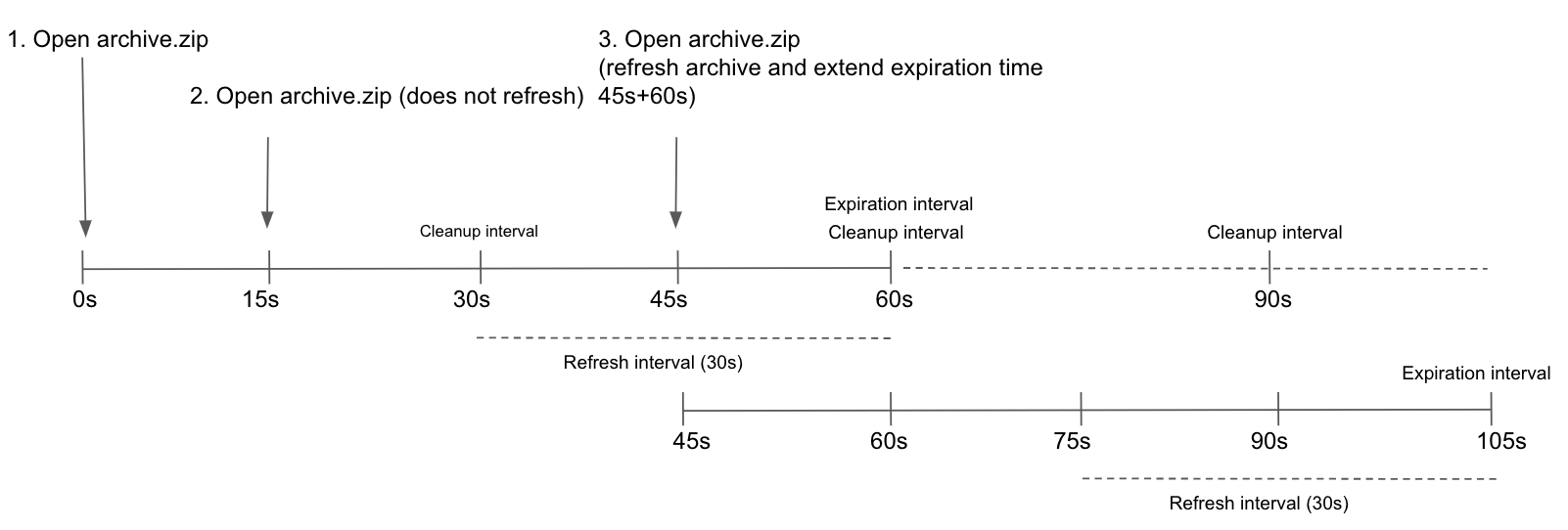
Archives are refreshed in the cache (extending the time they are held in memory) if they’re accessed
before zip_cache_expiration, and the time left before expiring is less than or equal to
zip_cache_refresh. For example, if archive.zip is accessed at time 0s, it expires in 60s
(the default for zip_cache_expiration). If the archive is opened again after 15s, it is not
refreshed because the time left for expiry (45s) is greater than zip_cache_refresh (default
30s). However, if the archive is accessed again after 45s (from the first time it was opened),
it’s refreshed. This extends the time the archive remains in memory from 45s + zip_cache_expiration (60s), for a total of 105s.
After an archive reaches zip_cache_expiration, it’s marked as expired and removed on the next
zip_cache_cleanup interval.
HTTP Strict Transport Security (HSTS) support
HTTP Strict Transport Security (HSTS) can be enabled through the gitlab_pages['headers']
configuration option. HSTS informs browsers that the website should always be accessed over HTTPS,
preventing attackers from forcing unencrypted connections. It can also improve page loading speed by
preventing browsers from attempting an unencrypted HTTP connection before being redirected to HTTPS.
gitlab_pages['headers'] = ['Strict-Transport-Security: max-age=63072000']Pages project redirect limits
GitLab Pages has default limits for the
_redirects file to minimize performance impact.
To adjust the limits:
gitlab_pages['redirects_max_config_size'] = 131072
gitlab_pages['redirects_max_path_segments'] = 50
gitlab_pages['redirects_max_rule_count'] = 2000
Use environment variables
You can pass an environment variable to the Pages daemon to enable or disable a feature flag.
To disable the configurable directory feature:
-
Edit
/etc/gitlab/gitlab.rb:gitlab_pages['env'] = { 'FF_CONFIGURABLE_ROOT_DIR' => "false" } -
Save the file and reconfigure GitLab for the changes to take effect.
Activate verbose logging for daemon
To configure verbose logging of the GitLab Pages daemon:
-
By default the daemon only logs with
INFOlevel. To log events with levelDEBUG, edit/etc/gitlab/gitlab.rb:gitlab_pages['log_verbose'] = true -
Save the file and reconfigure GitLab for the changes to take effect.
Propagating the correlation ID
Setting propagate_correlation_id to true allows installations behind a reverse proxy to generate
and set a correlation ID on requests sent to GitLab Pages. When a reverse proxy sets the header
value X-Request-ID, the value propagates in the request chain. Users can
find the correlation ID in the logs.
To enable the propagation of the correlation ID:
-
In
/etc/gitlab/gitlab.rb, add:gitlab_pages['propagate_correlation_id'] = true -
Save the file and reconfigure GitLab for the changes to take effect.
Change storage path
To change the default path where GitLab Pages content is stored:
-
Pages are stored by default in
/var/opt/gitlab/gitlab-rails/shared/pages. To use a different location, edit/etc/gitlab/gitlab.rb:gitlab_rails['pages_path'] = "/mnt/storage/pages" -
Save the file and reconfigure GitLab for the changes to take effect.
Configure listener for reverse proxy requests
To configure the proxy listener of GitLab Pages:
-
By default the listener is configured to listen for requests on
localhost:8090.To disable it, edit
/etc/gitlab/gitlab.rb:gitlab_pages['listen_proxy'] = nilTo change the port, edit
/etc/gitlab/gitlab.rb:gitlab_pages['listen_proxy'] = "localhost:10080" -
Save the file and reconfigure GitLab for the changes to take effect.
Set global maximum size of each GitLab Pages site
- Tier: Free, Premium, Ultimate
- Offering: GitLab Self-Managed
Prerequisites:
- You must have administrator access to the instance.
To set the global maximum pages size for a project:
- In the upper-right corner, select Admin.
- Select Settings > Preferences.
- Expand Pages.
- In Maximum size of pages, enter a value. The default is
100. - Select Save changes.
Set maximum size of each GitLab Pages site in a group
- Tier: Premium, Ultimate
- Offering: GitLab Self-Managed
Prerequisites:
- You must have administrator access to the instance.
To set the maximum size of each GitLab Pages site in a group, overriding the inherited setting:
- In the top bar, select Search or go to and find your group.
- Select Settings > General.
- Expand Pages.
- Enter a value under Maximum size in MB.
- Select Save changes.
Set maximum size of GitLab Pages site in a project
- Tier: Premium, Ultimate
- Offering: GitLab Self-Managed
Prerequisites:
- You must have administrator access to the instance.
To set the maximum size of a GitLab Pages site in a project, overriding the inherited setting:
- In the top bar, select Search or go to and find your project.
- Select Deploy > Pages.
- In Maximum size of pages, enter the size in MB.
- Select Save changes.
Set maximum number of GitLab Pages custom domains for a project
Prerequisites:
- You must have administrator access to the instance.
To set the maximum number of GitLab Pages custom domains for a project:
- In the upper-right corner, select Admin.
- Select Settings > Preferences.
- Expand Pages.
- Enter a value for Maximum number of custom domains per project. Use
0for unlimited domains. - Select Save changes.
Configure the default expiry for parallel deployments
Prerequisites:
- Administrator access to the instance.
To configure the default duration after parallel deployments are deleted:
- In the upper-right corner, select Admin.
- Select Settings > Preferences.
- Expand Pages.
- Enter a value for Default expiration for parallel deployments in seconds.
Use
0if parallel deployments should not expire by default. - Select Save changes.
Set maximum number of files per GitLab Pages website
The total number of file entries (including directories and symlinks) is limited to 200,000
for each GitLab Pages website.
You can update the limit in your GitLab Self-Managed instance using the GitLab Rails console.
For more information, see GitLab application limits.
Running GitLab Pages on a separate server
You can run the GitLab Pages daemon on a separate server to decrease the load on your main application server.
The following procedure includes steps to back up and edit the
gitlab-secrets.json file. This file contains secrets that control
database encryption. Proceed with caution.
To configure GitLab Pages on a separate server:
-
Optional. To enable access control, add the following to
/etc/gitlab/gitlab.rband reconfigure the GitLab server:If you plan to use GitLab Pages with access control, enable it on the GitLab server before copying
gitlab-secrets.json. Enabling access control generates a new OAuth application, and information about it propagates togitlab-secrets.json. If this is not done in the correct order, you may face issues with access control.gitlab_pages['access_control'] = true -
Create a backup of the secrets file on the GitLab server:
cp /etc/gitlab/gitlab-secrets.json /etc/gitlab/gitlab-secrets.json.bak -
On the GitLab server, to enable Pages, add the following to
/etc/gitlab/gitlab.rb:pages_external_url "http://<pages_server_URL>" -
Set up object storage by either:
-
Reconfigure the GitLab server for the changes to take effect. The
gitlab-secrets.jsonfile is now updated with the new configuration. -
Set up a new server. This becomes the Pages server.
-
On the Pages server, install GitLab by using the Linux package and modify
/etc/gitlab/gitlab.rbto include:roles ['pages_role'] pages_external_url "http://<pages_server_URL>" gitlab_pages['gitlab_server'] = 'http://<gitlab_server_IP_or_URL>' ## If access control was enabled gitlab_pages['access_control'] = true -
If you have custom UID/GID settings on the GitLab server, add them to the Pages server
/etc/gitlab/gitlab.rbas well. Otherwise, runninggitlab-ctl reconfigureon the GitLab server can change file ownership and cause Pages requests to fail. -
Create a backup of the secrets file on the Pages server:
cp /etc/gitlab/gitlab-secrets.json /etc/gitlab/gitlab-secrets.json.bak -
To enable custom domains for individual GitLab Pages sites, set up the Pages server using either:
-
Copy the
/etc/gitlab/gitlab-secrets.jsonfile from the GitLab server to the Pages server:# On the GitLab server cp /etc/gitlab/gitlab-secrets.json /mnt/pages/gitlab-secrets.json # On the Pages server mv /var/opt/gitlab/gitlab-rails/shared/pages/gitlab-secrets.json /etc/gitlab/gitlab-secrets.json -
Reconfigure the Pages server for the changes to take effect.
-
On the GitLab server, make the following changes to
/etc/gitlab/gitlab.rb:pages_external_url "http://<pages_server_URL>" gitlab_pages['enable'] = false pages_nginx['enable'] = false -
To enable custom domains for individual GitLab Pages sites, on the GitLab server, make the following changes to
/etc/gitlab/gitlab.rb:-
Custom domains:
gitlab_pages['custom_domain_mode'] = 'http' -
Custom domains with TLS support:
gitlab_pages['custom_domain_mode'] = 'https'
-
-
Reconfigure the GitLab server for the changes to take effect.
To distribute the load, you can run GitLab Pages on multiple servers using standard load balancing practices, such as configuring your DNS server to return multiple IPs or using an IP-level load balancer. To set up GitLab Pages on multiple servers, repeat the previous procedure for each Pages server.
Domain source configuration
When the GitLab Pages daemon serves a request, it first identifies which project should serve the requested URL and how its content is stored.
By default, GitLab Pages uses the internal GitLab API every time a new domain is requested. Pages fails to start if it cannot connect to the API. Domain information is also cached by the Pages daemon to speed up subsequent requests.
For common issues, see the troubleshooting section.
GitLab API cache configuration
API-based configuration uses a caching mechanism to improve performance and reliability. You can modify the cache behavior by changing the following settings, though the recommended defaults should only be changed if needed. Incorrect configuration may result in intermittent or persistent errors, or the Pages daemon serving stale content.
Expiry, interval, and timeout flags use
Go duration formatting. A duration string is a possibly
signed sequence of decimal numbers, each with optional fraction and a unit suffix, such as 300ms,
1.5h, or 2h45m. Valid time units are ns, us (or µs), ms, s, m, h.
Examples:
- Increasing
gitlab_cache_expiryallows items to exist in the cache longer. Use this setting if the communication between GitLab Pages and GitLab Rails is not stable. - Increasing
gitlab_cache_refreshreduces the frequency at which GitLab Pages requests a domain’s configuration from GitLab Rails. Use this setting if GitLab Pages generates too many requests to the GitLab API and content does not change frequently. - Decreasing
gitlab_cache_cleanupremoves expired items from the cache more frequently, reducing memory usage on your Pages node. - Decreasing
gitlab_retrieval_timeoutstops requests to GitLab Rails more quickly. Increasing it allows more time to receive a response from the API. Use this setting for slow network environments. - Decreasing
gitlab_retrieval_intervalmakes requests to the API more frequently, only when there is an error response from the API, such as a connection timeout. - Decreasing
gitlab_retrieval_retriesreduces the number of times a domain’s configuration is retried before reporting an error.
Object storage settings
The following object storage settings are:
- Nested under
pages:and thenobject_store:on self-compiled installations. - Prefixed by
pages_object_store_on Linux package installations.
| Setting | Description | Default |
|---|---|---|
enabled |
Whether object storage is enabled. | false |
remote_directory |
The name of the bucket where Pages site content is stored. | |
connection |
Various connection options described below. |
If you want to stop using and disconnect the NFS server, you must explicitly disable local storage.
S3-compatible connection settings
You should use the consolidated object storage settings.
See the available connection settings for different providers.
Migrate Pages deployments to object storage
Existing Pages deployment objects (ZIP archives) can be stored in either local storage or object storage.
To migrate your existing Pages deployments from local storage to object storage:
sudo gitlab-rake gitlab:pages:deployments:migrate_to_object_storageYou can track progress and verify that all Pages deployments migrated successfully using the PostgreSQL console:
sudo gitlab-rails dbconsole --database mainfor Linux package installations.sudo -u git -H psql -d gitlabhq_productionfor self-compiled installations.
Verify that objectstg (where store=2) has a count of all Pages deployments:
gitlabhq_production=# SELECT count(*) AS total, sum(case when file_store = '1' then 1 else 0 end) AS filesystem, sum(case when file_store = '2' then 1 else 0 end) AS objectstg FROM pages_deployments;

total | filesystem | objectstg
------+------------+-----------
   10 |          0 |        10
After verifying everything is working correctly, disable Pages local storage.
Rolling Pages deployments back to local storage
After migrating to object storage, you can move your Pages deployments back to local storage:
sudo gitlab-rake gitlab:pages:deployments:migrate_to_localDisable Pages local storage
If you use object storage, you can disable local storage to avoid unnecessary disk usage or writes:
-
Edit
/etc/gitlab/gitlab.rb:gitlab_rails['pages_local_store_enabled'] = false -
Save the file and reconfigure GitLab for the changes to take effect.
Enable Pages network storage in multi-node environments
Object storage is the preferred configuration for most environments. However, if your requirements call for network storage and you want to configure Pages to run on a separate server, you should:
-
Ensure the shared storage volume is already mounted and available on both the primary server and your intended Pages server.
-
Update
/etc/gitlab/gitlab.rbon each node to include:gitlab_pages['enable_disk'] = true gitlab_rails['pages_path'] = "/var/opt/gitlab/gitlab-rails/shared/pages" # Path to your network storage -
Switch over Pages to your separate server.
After you successfully configure Pages on your separate server, only that server needs access to the shared storage volume. Consider keeping the shared storage volume mounted on your primary server in case you need to migrate back to a single-node environment.
ZIP storage
The underlying storage format of GitLab Pages is a single ZIP archive per project. These archives can be stored either locally or on object storage. A new archive is stored every time a Pages site is updated.
Backup
GitLab Pages are part of the regular backup, so there is no separate backup to configure.
Security
You should strongly consider running GitLab Pages under a different hostname than GitLab to prevent XSS attacks.
Rate limits
You can enforce rate limits to help minimize the risk of a Denial of Service (DoS) attack. GitLab Pages uses a token bucket algorithm to enforce rate limiting. By default, requests or TLS connections that exceed the specified limits are reported and rejected.
GitLab Pages supports the following types of rate limiting:
- For each
source_ip: Limits requests or TLS connections from a single client IP address. - For each
domain: Limits requests or TLS connections per domain hosted on GitLab Pages. This can be a custom domain likeexample.com, or a group domain likegroup.gitlab.io.
HTTP request-based rate limits are enforced using the following settings:
rate_limit_source_ip: Maximum requests per client IP per second. Set to0to disable.rate_limit_source_ip_burst: Maximum requests allowed in an initial burst per client IP, for example when a page loads multiple resources simultaneously.rate_limit_domain: Maximum requests per hosted Pages domain per second. Set to0to disable.rate_limit_domain_burst: Maximum requests allowed in an initial burst per hosted Pages domain.
TLS connection-based rate limits are enforced using the following settings:
rate_limit_tls_source_ip: Maximum TLS connections per client IP per second. Set to0to disable.rate_limit_tls_source_ip_burst: Maximum TLS connections allowed in an initial burst per client IP.rate_limit_tls_domain: Maximum TLS connections per hosted Pages domain per second. Set to0to disable.rate_limit_tls_domain_burst: Maximum TLS connections allowed in an initial burst per hosted Pages domain.
To allow certain IP ranges (subnets) to bypass all rate limits, use rate_limit_subnets_allow_list.
For example, ['1.2.3.4/24', '2001:db8::1/32']. An
example GitLab Pages chart
is available.
If the client’s IP address is IPv6, the limit is applied to the IPv6 prefix with a length of 64, rather than the entire address.
Enable HTTP requests rate limits by source IP
To set rate limits in /etc/gitlab/gitlab.rb:
-
Add the following:
gitlab_pages['rate_limit_source_ip'] = 20.0 gitlab_pages['rate_limit_source_ip_burst'] = 600 -
Save the file and reconfigure GitLab for the changes to take effect.
Enable HTTP requests rate limits by domain
To set rate limits in /etc/gitlab/gitlab.rb:
-
Add:
gitlab_pages['rate_limit_domain'] = 1000 gitlab_pages['rate_limit_domain_burst'] = 5000 -
Save the file and reconfigure GitLab for the changes to take effect.
Enable TLS connections rate limits by source IP
To set rate limits in /etc/gitlab/gitlab.rb:
-
Add:
gitlab_pages['rate_limit_tls_source_ip'] = 20.0 gitlab_pages['rate_limit_tls_source_ip_burst'] = 600 -
Save the file and reconfigure GitLab for the changes to take effect.
Enable TLS connections rate limits by domain
To set rate limits in /etc/gitlab/gitlab.rb:
-
Add:
gitlab_pages['rate_limit_tls_domain'] = 1000 gitlab_pages['rate_limit_tls_domain_burst'] = 5000 -
Save the file and reconfigure GitLab for the changes to take effect.